
Paper visitor entries can’t be checked; buddy punching and missed punches spoil attendance.
Today's Work, Tomorrow's Heritage · a short tour
Know who is inside.
Every employee, contractor and visitor.
IndusTrack runs the gate, the shop floor and HR from one record of every person: employees and contract workers walk in with a face, finger or card, visitors with an approved QR pass — and a live screen shows how many are inside, by department and by contractor, with today's IN and OUT. Attendance, payroll and contractor bills follow from the same punches.
Use the arrow keys, swipe, or the dots at the bottom.
Step 1 Member / host
Request a visitor pass in under a minute
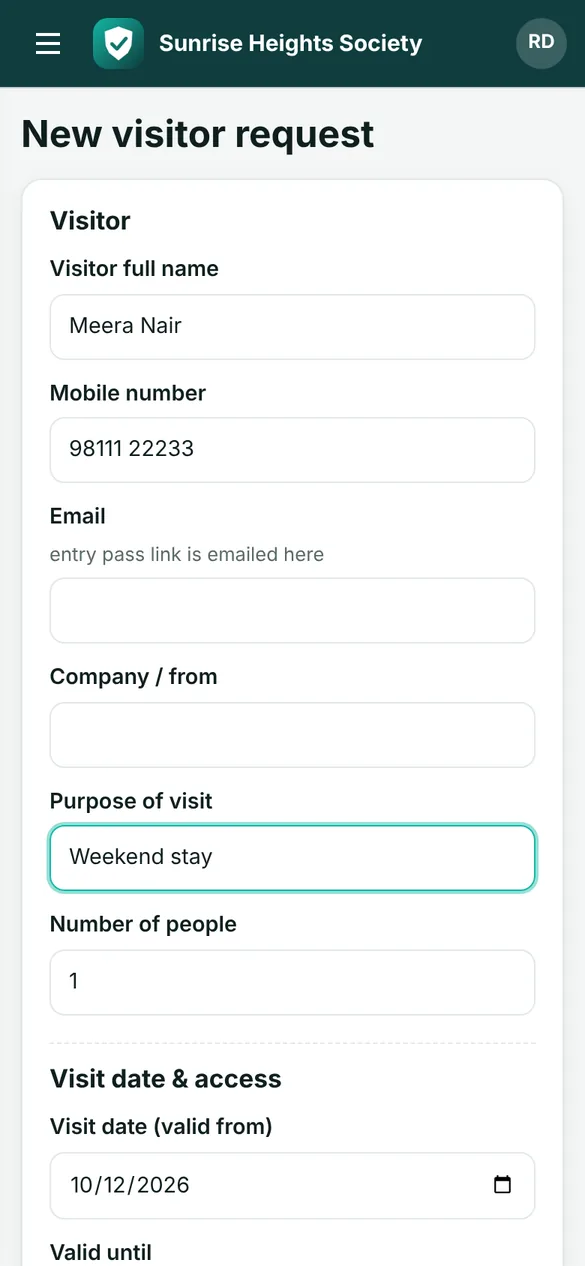
A resident, employee or reception fills in who is coming and when — from the Android app or any browser.
- 1Visitor's name and mobile — the pass goes to WhatsApp or email
- 2Email: the QR entry pass is sent here automatically on approval
- 3Purpose, number of people, vehicle and ID photo
- 4Visit date, valid-until date, time window and how many entries
 1234
Step 2 Admin
Check the ID and approve — or reject
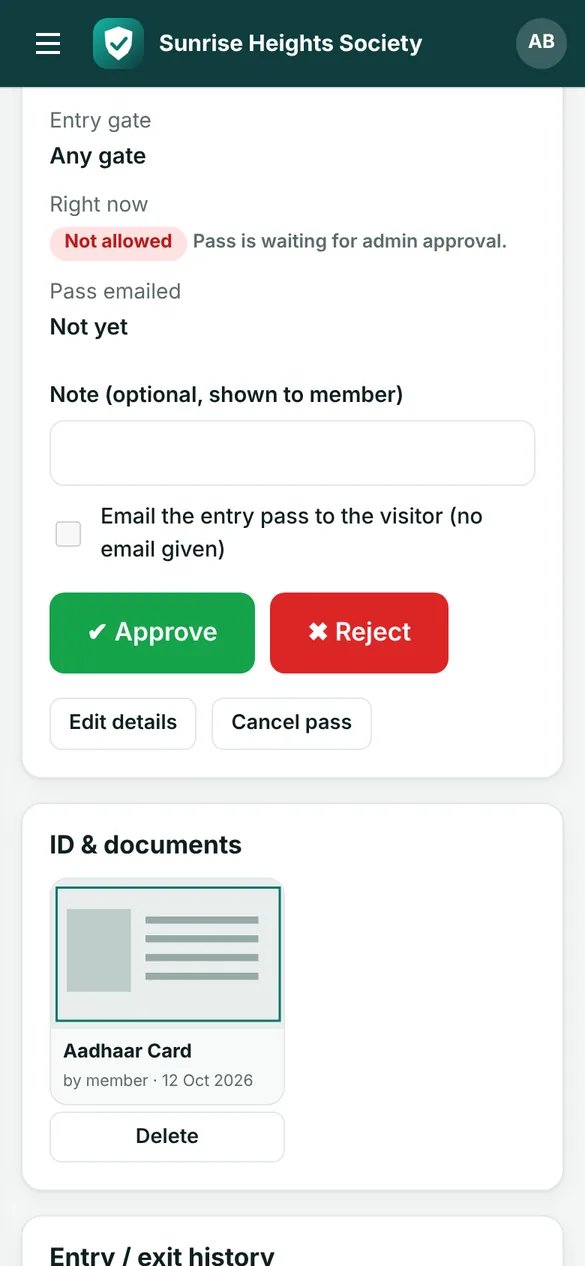
The admin gets an email for every new request. Rules can limit a pass to one entry, once a day or many times between two dates, a time window, and specific entry gates.
- 1Live check: why this pass is or isn’t valid right now
- 2Optional note — the member sees it
- 3Email the pass to the visitor in the same click
- 4Approve or reject in one tap
- 5ID proof the member uploaded, ready to check
 12345
Step 3 Visitor
The visitor gets a QR entry pass on their phone
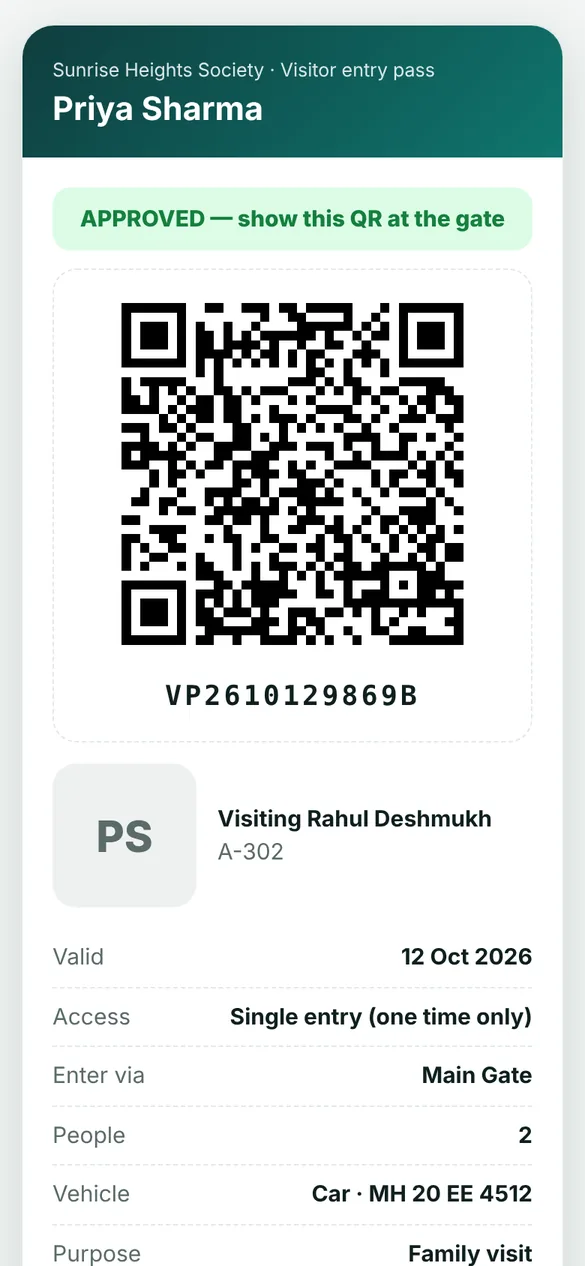
The pass link arrives by email, or the host shares it on WhatsApp. The visitor can add a selfie, ID proof and other documents before arriving.
- 1Clear status at the top: approved, waiting, rejected or expired
- 2The QR the guard scans
- 3Short reference — works when there is no smartphone
- 4Who they are visiting
- 5Dates, access type, entry gate and vehicle
 12345
Step 4 Security guard
Green means go. Red means stop.
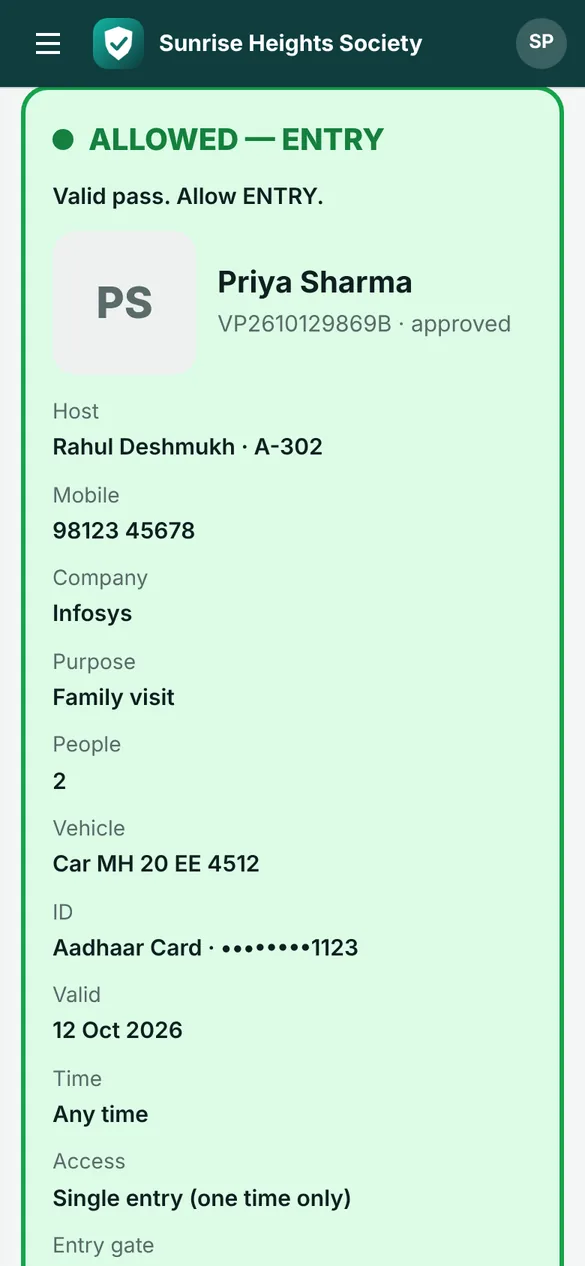
The guard scans the QR with the phone camera. No judgement calls — the app checks the approval, dates, time window, gate and how many times the pass was used.
Allowed
- 1Green: allowed — tap MARK IN
- 2Photo, name and pass reference
- 3Host, vehicle, ID, validity — everything to check at a glance
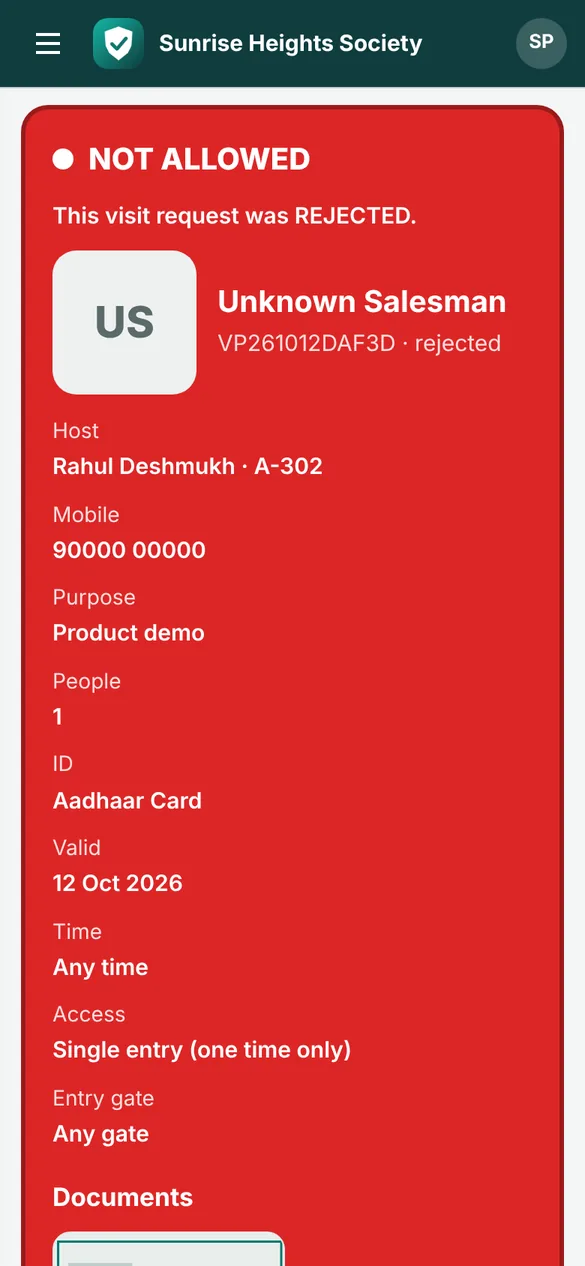
Not allowed
- 1Red full screen: do not let them in
- 2The exact reason: rejected, expired, wrong gate, already used…
 123
 12
At the entrance
A welcome screen that changes colour
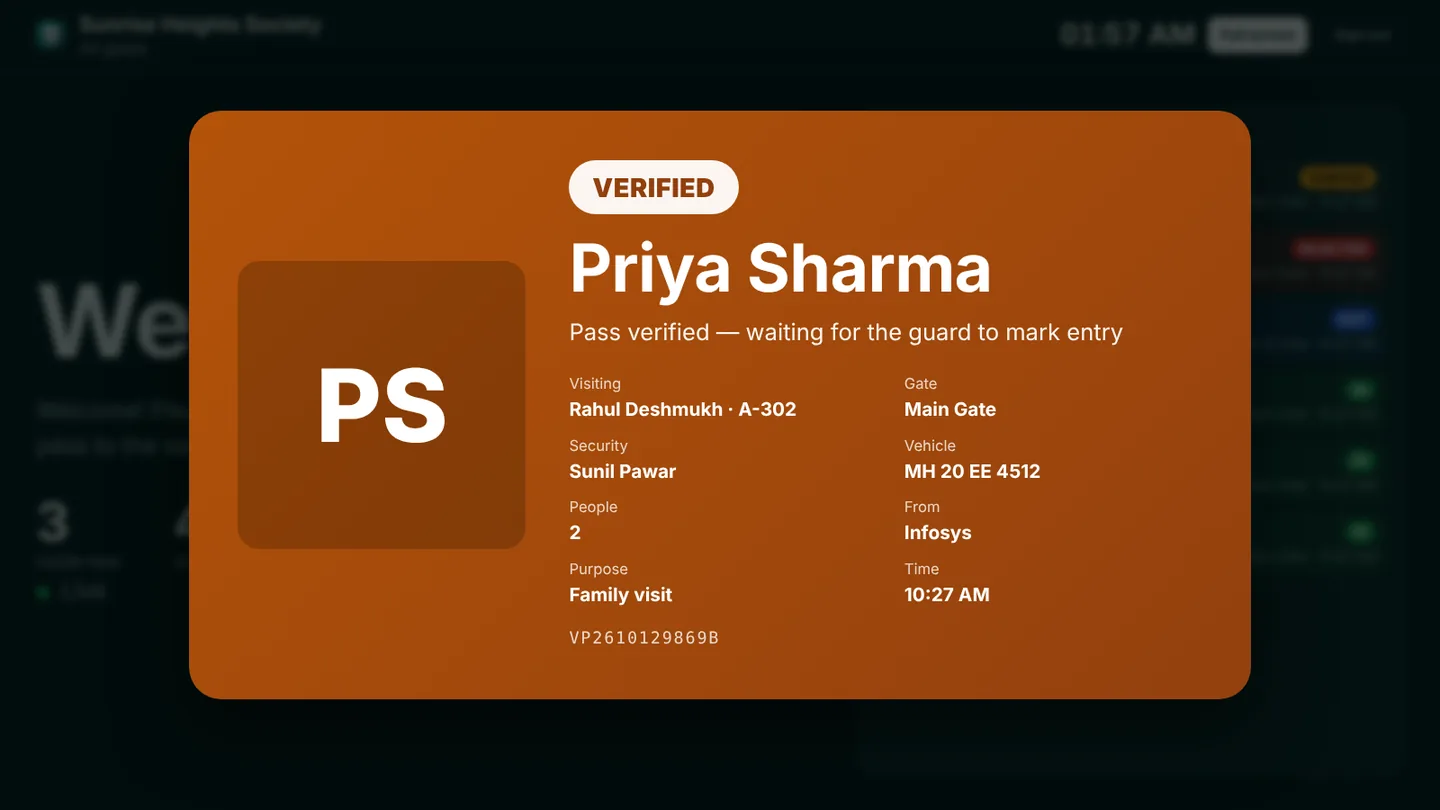
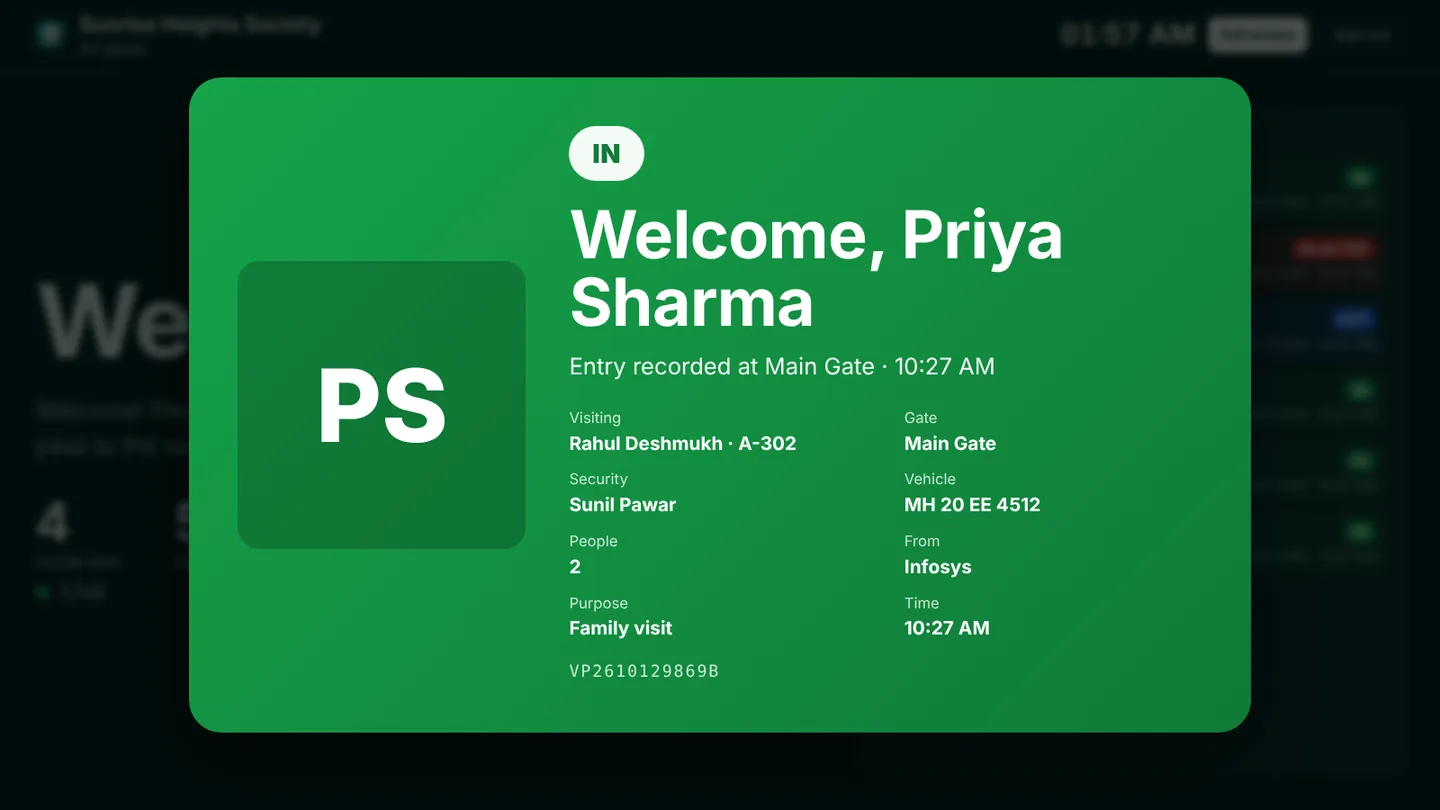
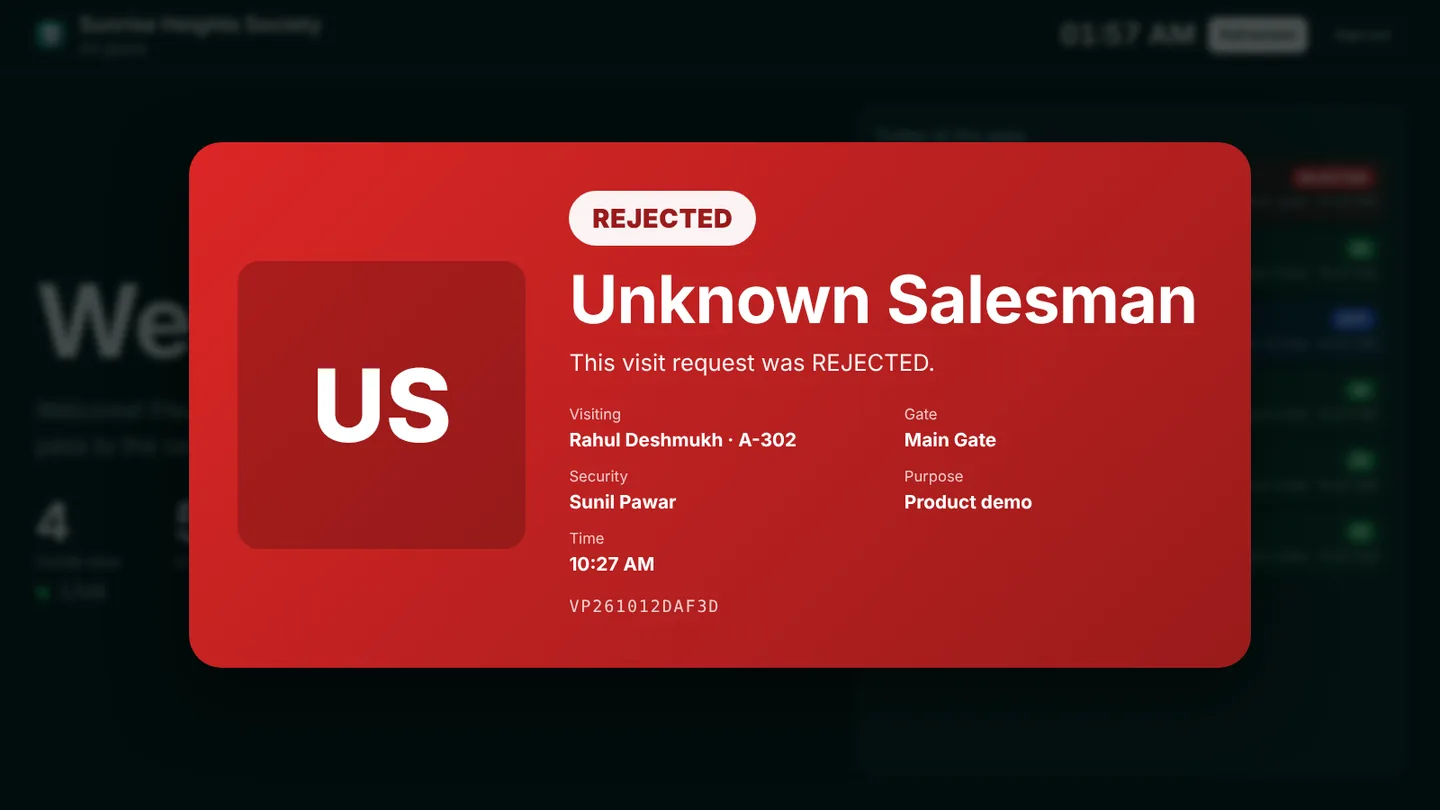
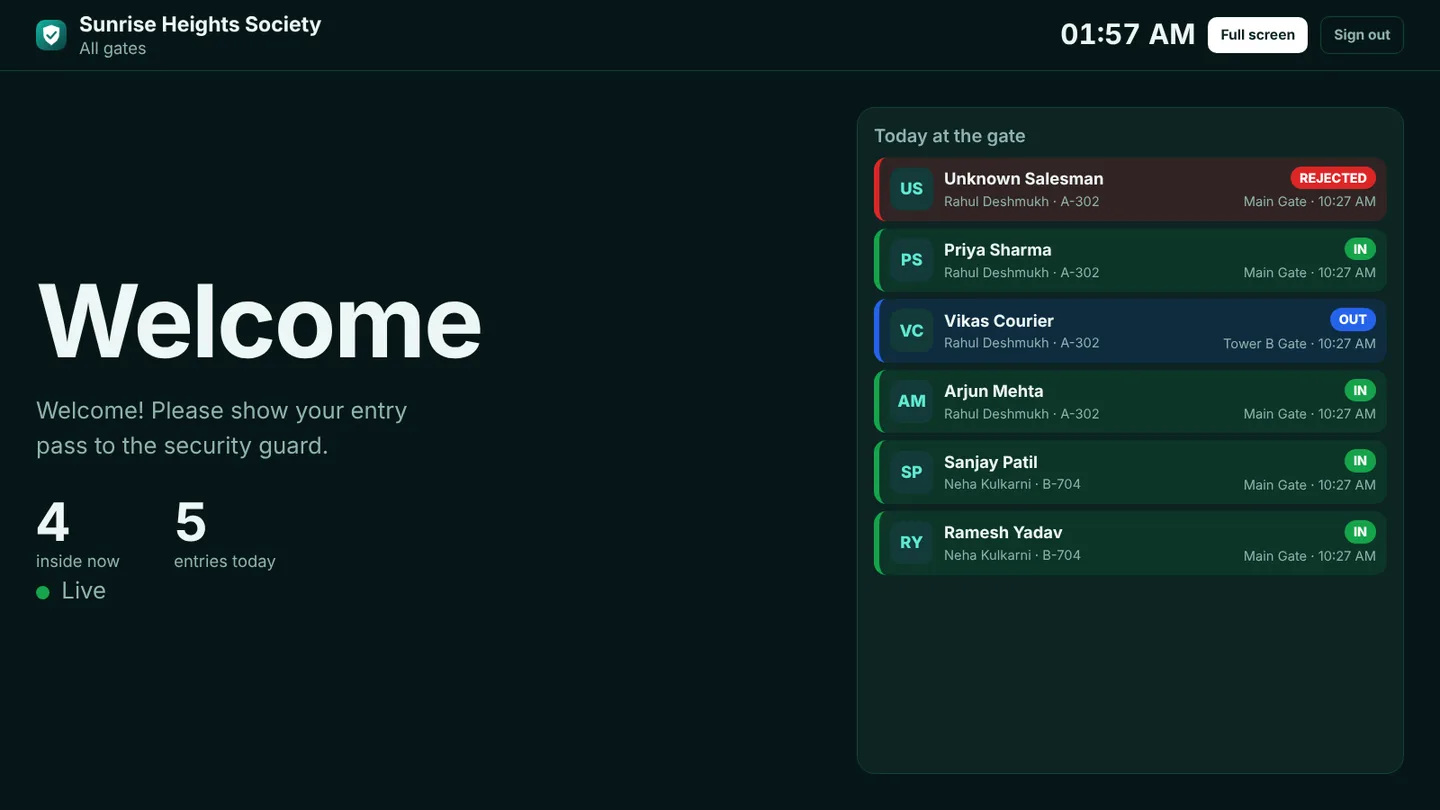
Put a TV or tablet at the gate. When the guard scans, the visitor’s card pops up:
- Amber pass verified, waiting for the guard
- Green marked IN — welcome
- Red refused, with the reason
The side list shows everyone who came through today.
Step 5 Records
Every entry and exit is on record
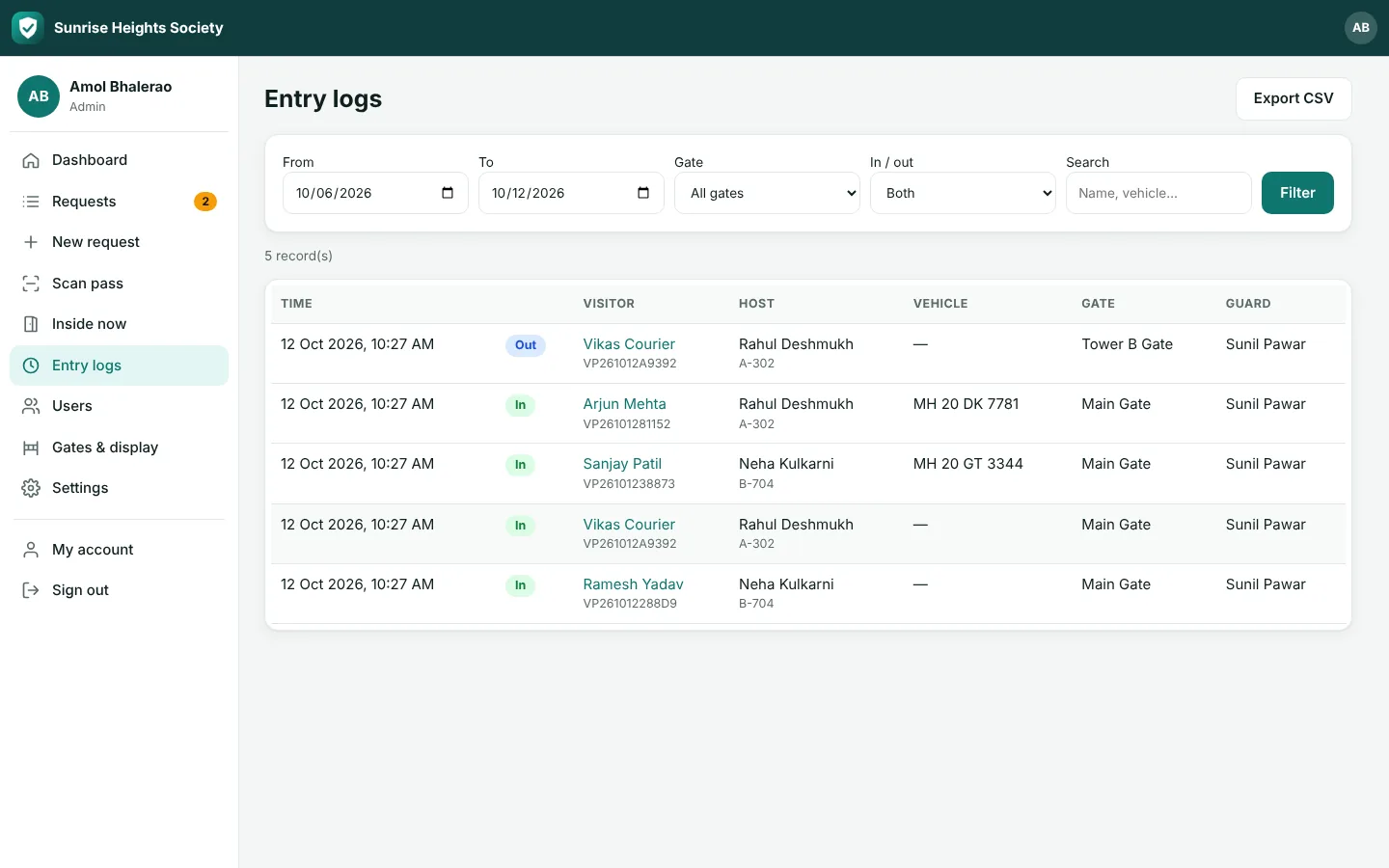
On the way out the guard scans again and taps MARK OUT. Admins see who is inside now, today’s expected visitors, and a full log with export to Excel.
- In and out time for every visit
- Which gate, which guard
- Overstay warnings for passes that ended
- The host is told when their guest arrives
Your own staff
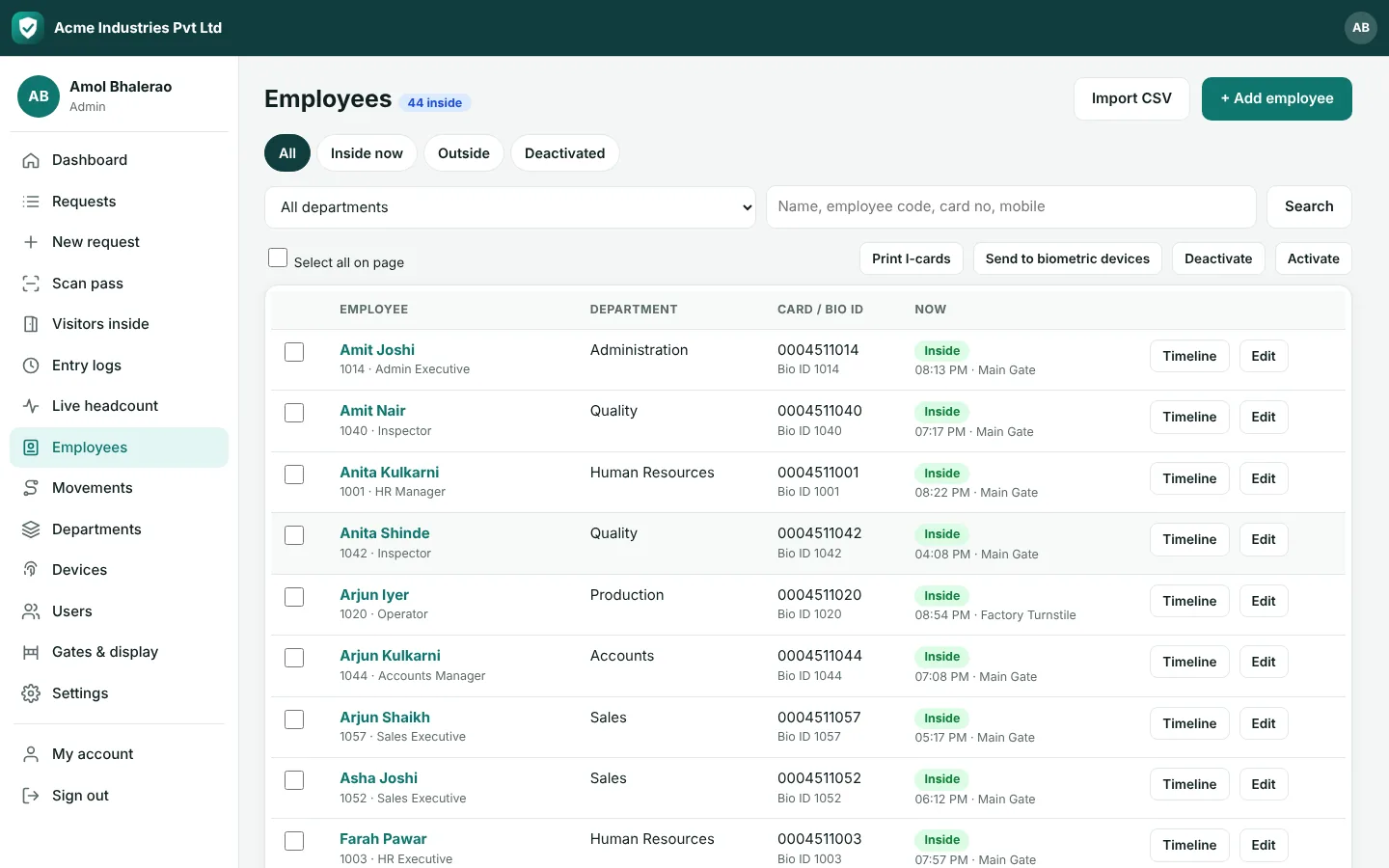
Employees walk straight in
Fingerprint & faceeSSL / ZKTeco machines
RFID I-cardTap at a door or turnstile
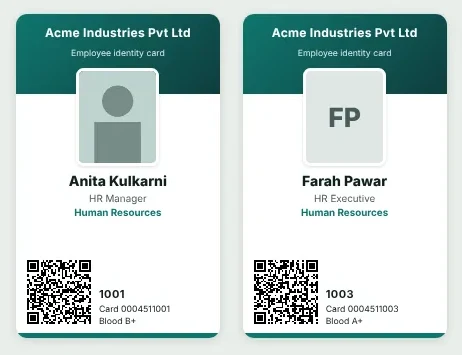
QR on the I-cardGuard scans with the app
Guard entryForgot the card? Marked by hand
- 1How many employees are inside right now
- 2Import 1,000 employees from Excel / payroll in one go
- 3Card number and biometric ID — sent to the machines automatically
- 4Inside or out, with time and gate
- 5Print I-cards or push employees to the biometric machines
 12345
Same app, same scan
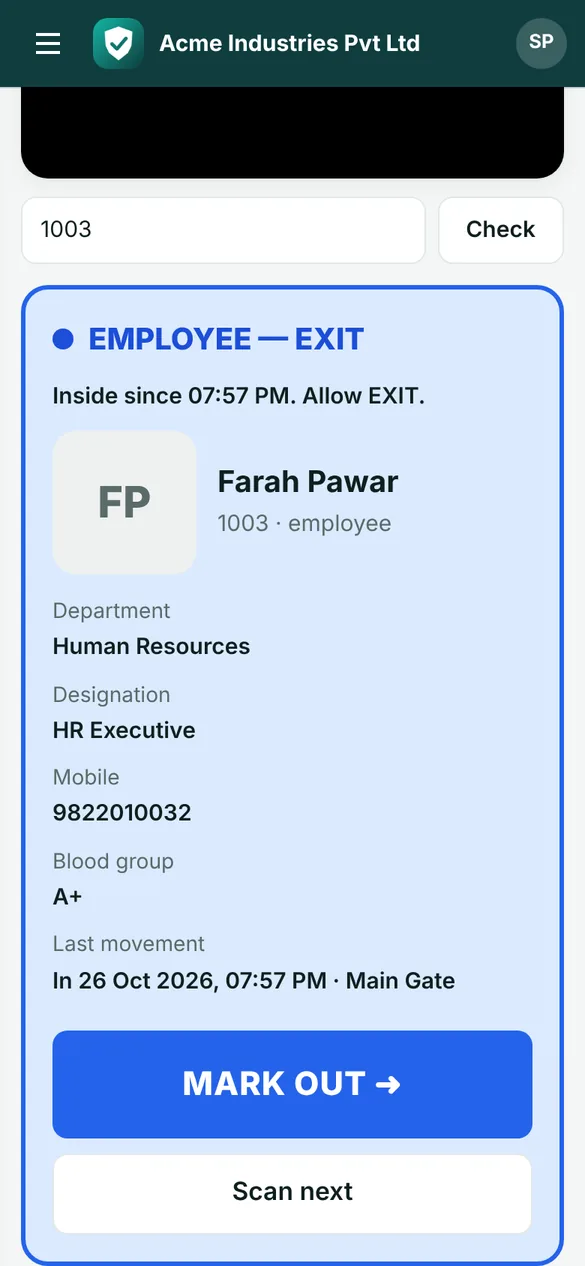
The guard app knows employees too
Scanning an employee’s I-card shows their photo, department and whether they are inside — so the guard marks the right direction.
- 1Type an employee code or card number, or scan the I-card QR
- 2Knows they are inside — offers EXIT
- 3One tap to mark OUT (or IN)
 123
Hardware
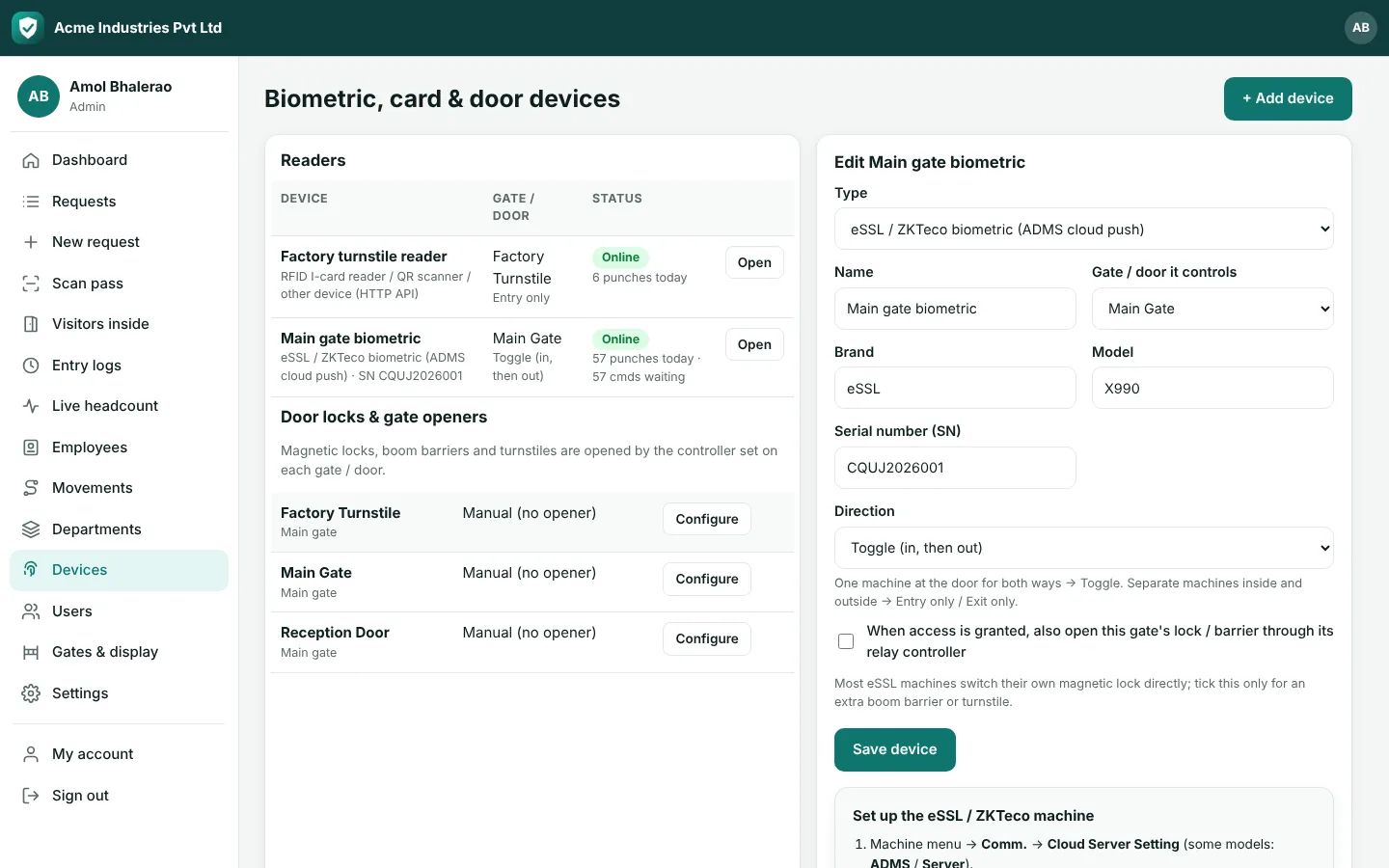
Connect biometric machines, card readers and door locks
Point an eSSL / ZKTeco machine at your website and approve it — punches arrive in seconds. Older machines connect through a small program on an office PC. Card readers ask IndusTrack and open the magnetic lock when access is granted.
- 1RFID card reader on the factory turnstile
- 2eSSL fingerprint / face machine at the main gate — online
- 3Door locks, turnstiles and boom barriers, opened by a relay
- 4Choose the machine type: eSSL / ZKTeco ADMS, LAN bridge or card reader
- 5Direction: entry only, exit only, toggle or the machine’s In/Out key
 12345
Real time
How many people are inside — right now?
Out of 1,000 staff, how many are in — and from which department? Visitors are counted under the person they came to meet. Updates every 3 seconds.
- 1Everyone inside right now
- 2Employees inside out of all staff, plus visitors
- 3One bar per department: staff in, visitors, and staff not in yet
- 4Where people came in, gate by gate
- 5Visitors counted under the person they came to meet
- 6Every entry and exit, as it happens
- 7Pick one department — or show all on a management screen
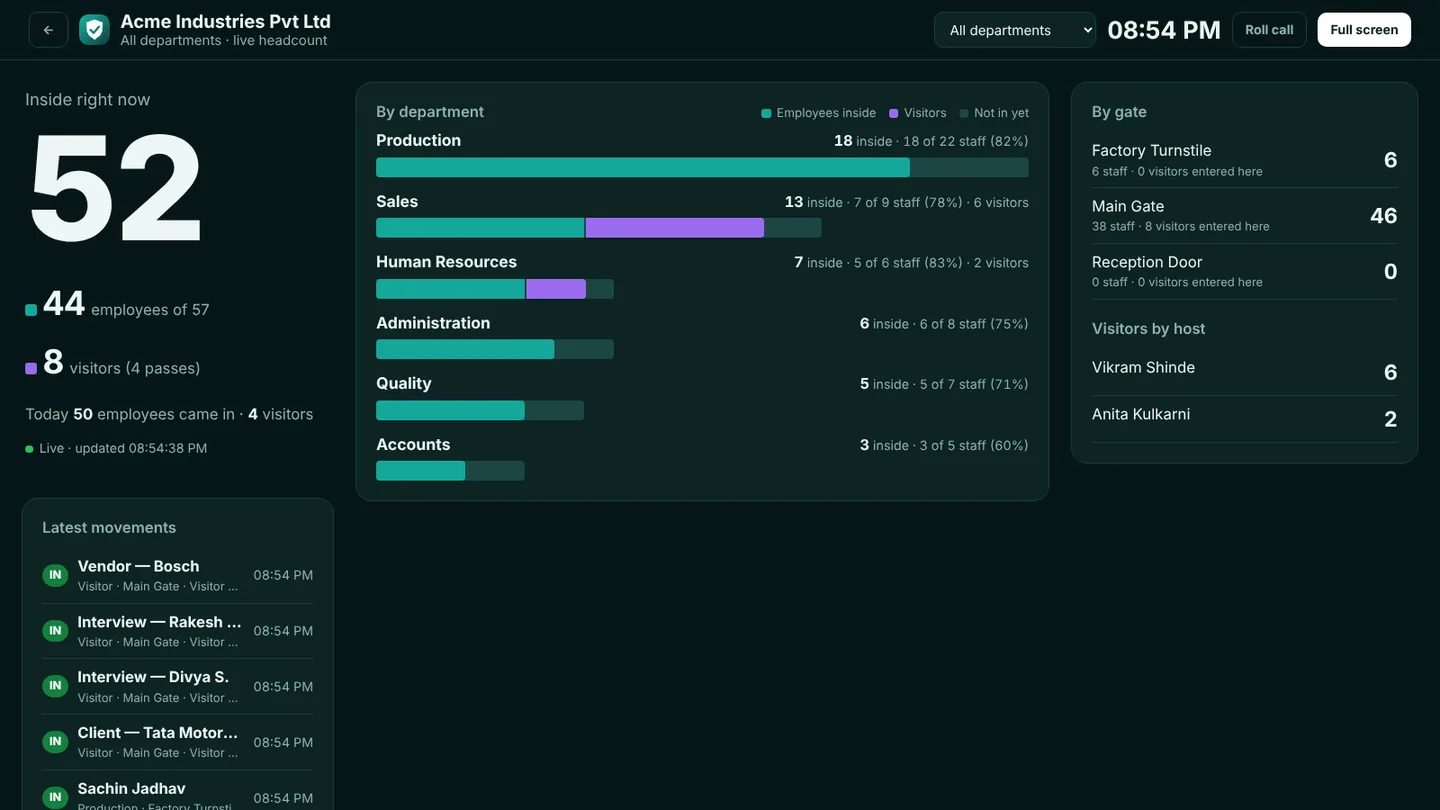 1234567
One screen per department
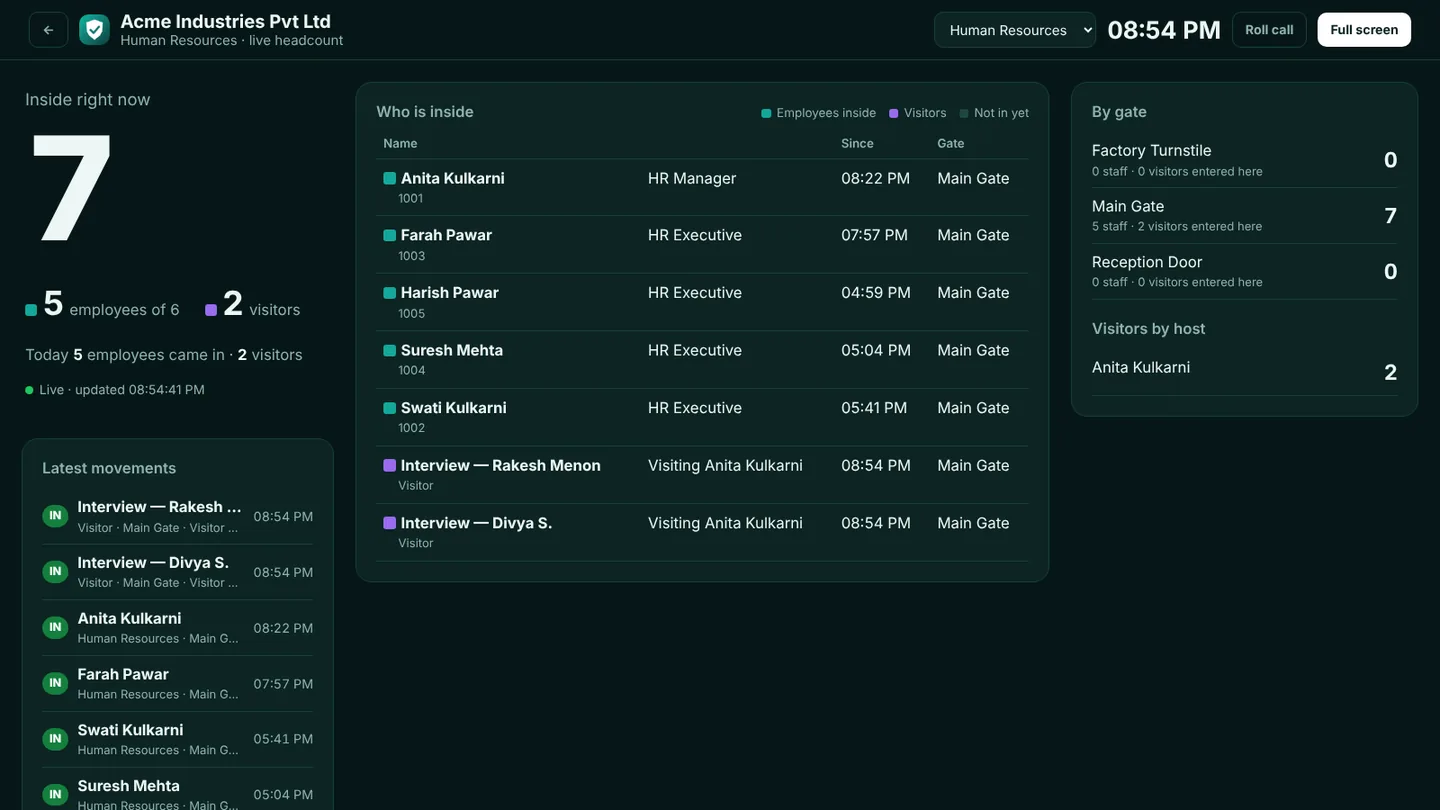
Each department head sees their own people
Pick a department and the screen lists exactly who is inside, since when and through which gate. Put it on a TV outside HR, Production or the cabin of the department head.
- Department heads see only their department
- Management screen shows all departments
- Roll call for fire drills in one click
Tracking
Who was where, and when
Every person has a timeline: first in, last out, time inside and each gate or door used — for any day.
- 1Profile with department, card and biometric ID
- 2Where they are right now
- 3First in, last out, total time inside
- 4Every punch: time, gate, fingerprint / face / card, device
- 5Guards can mark IN / OUT by hand when needed
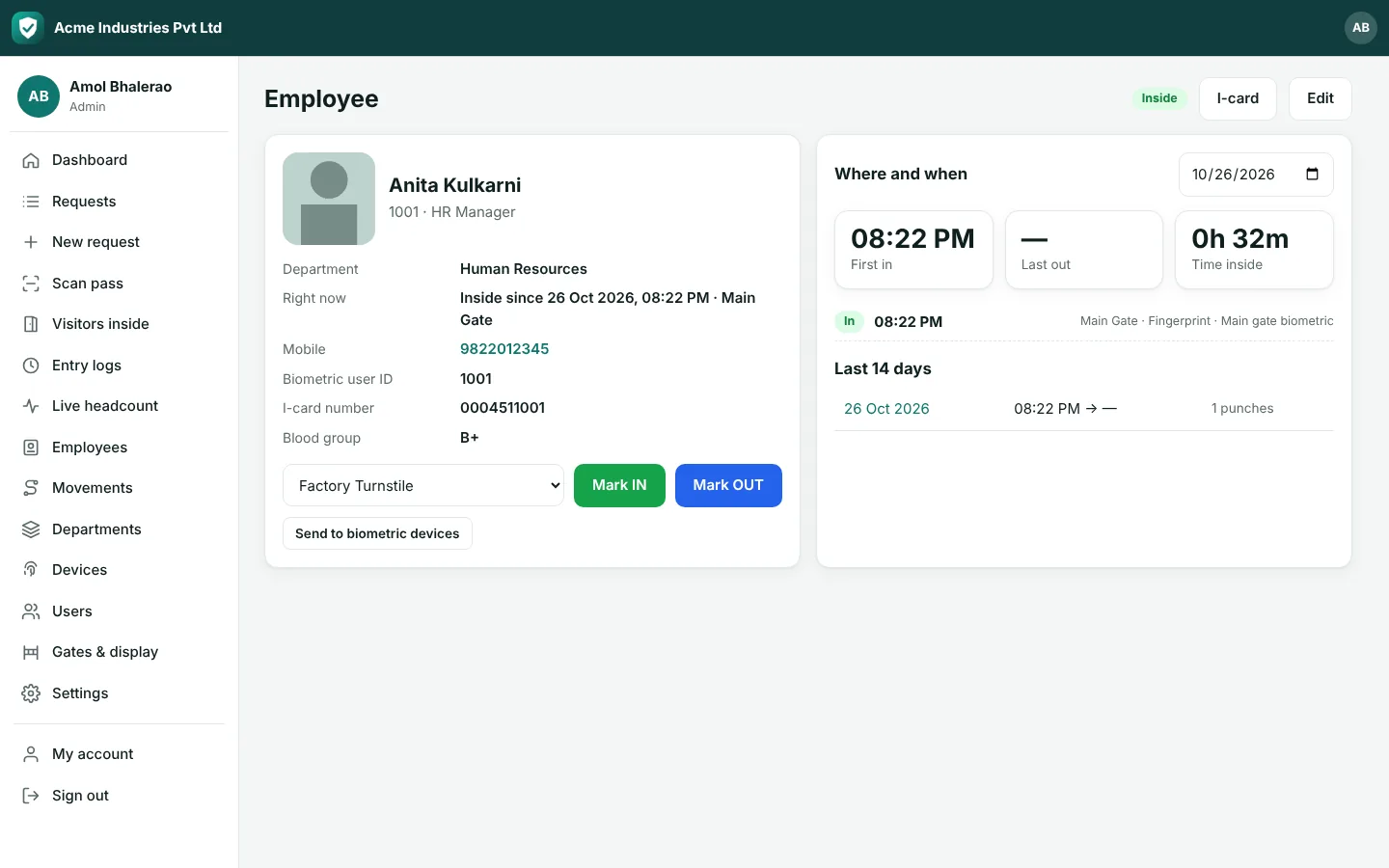 12345
Audit
One log for everyone who came and went
- 1Filter by date, person type, department, gate, direction
- 2Employees and visitors in one list
- 3How they came in: fingerprint, face, I-card, visitor pass, manual
- 4Export to Excel (CSV) for audits
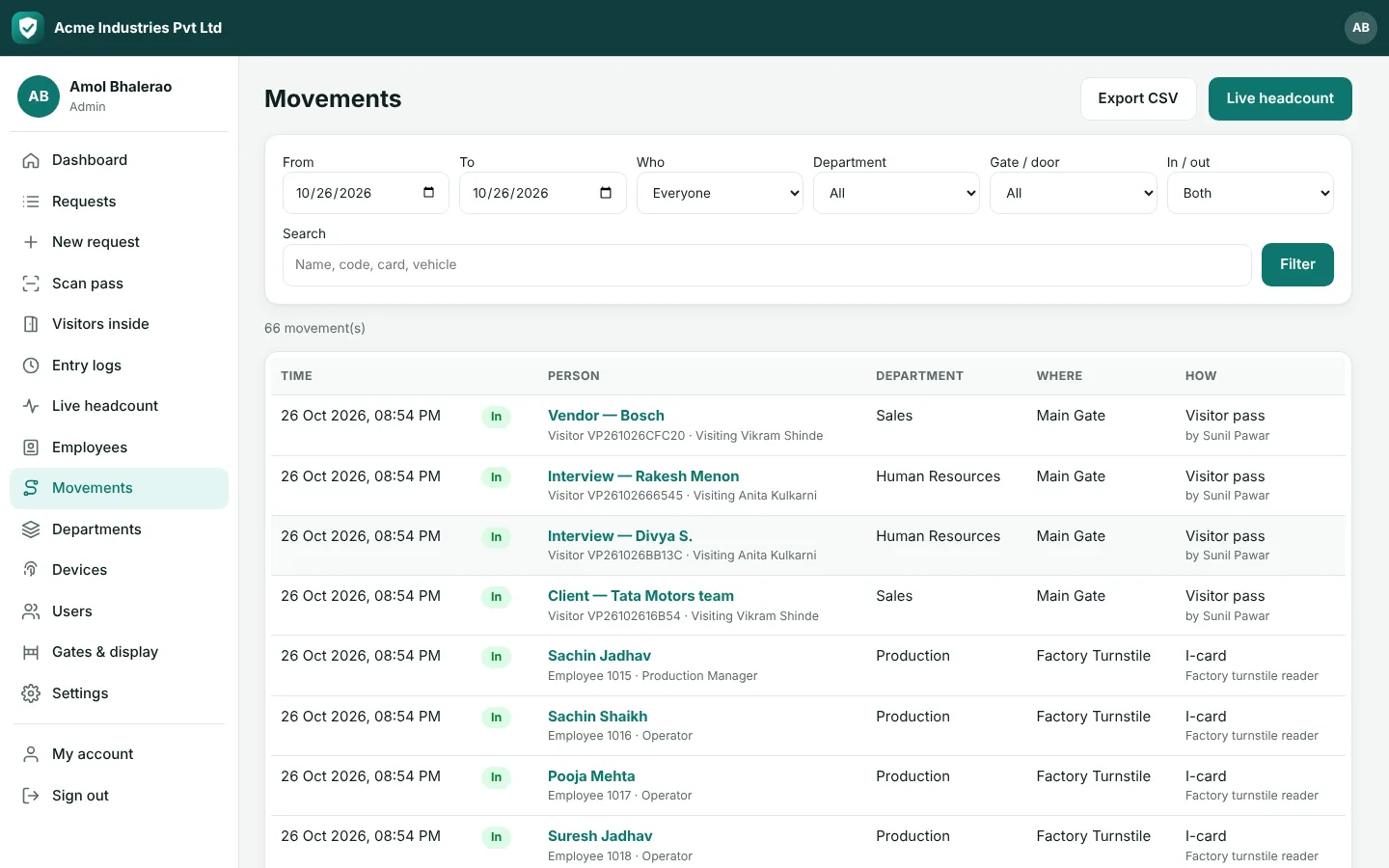 1234
Built for big plants
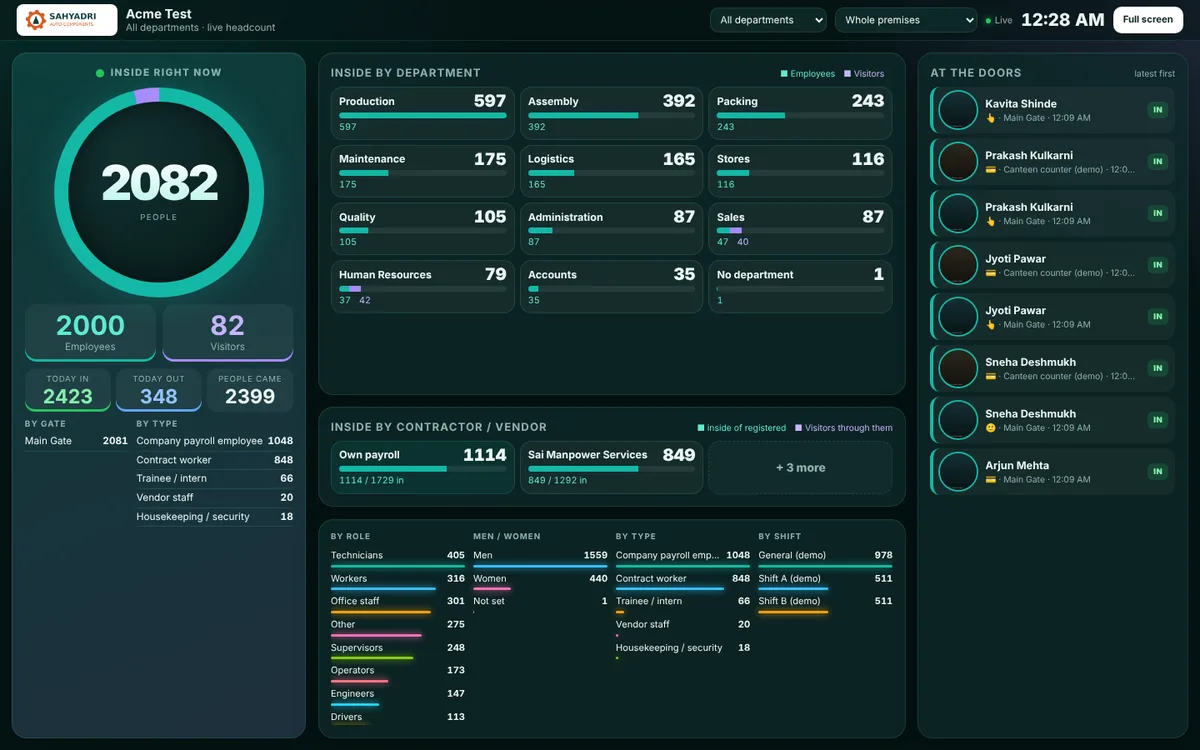
2,000 of 3,000 inside — counted live
The headcount TV shows four-digit totals clearly, split by department, contractor, shift, role and gender. Every punch updates it within a second and the name is spoken on every open screen — PC or Android TV.
- By department, contractor and shift
- Spoken greeting on gate TVs and Android TV browsers
- Repeat punches refused with “try again later”
Contractors & vendors
Bill every contractor from real attendance
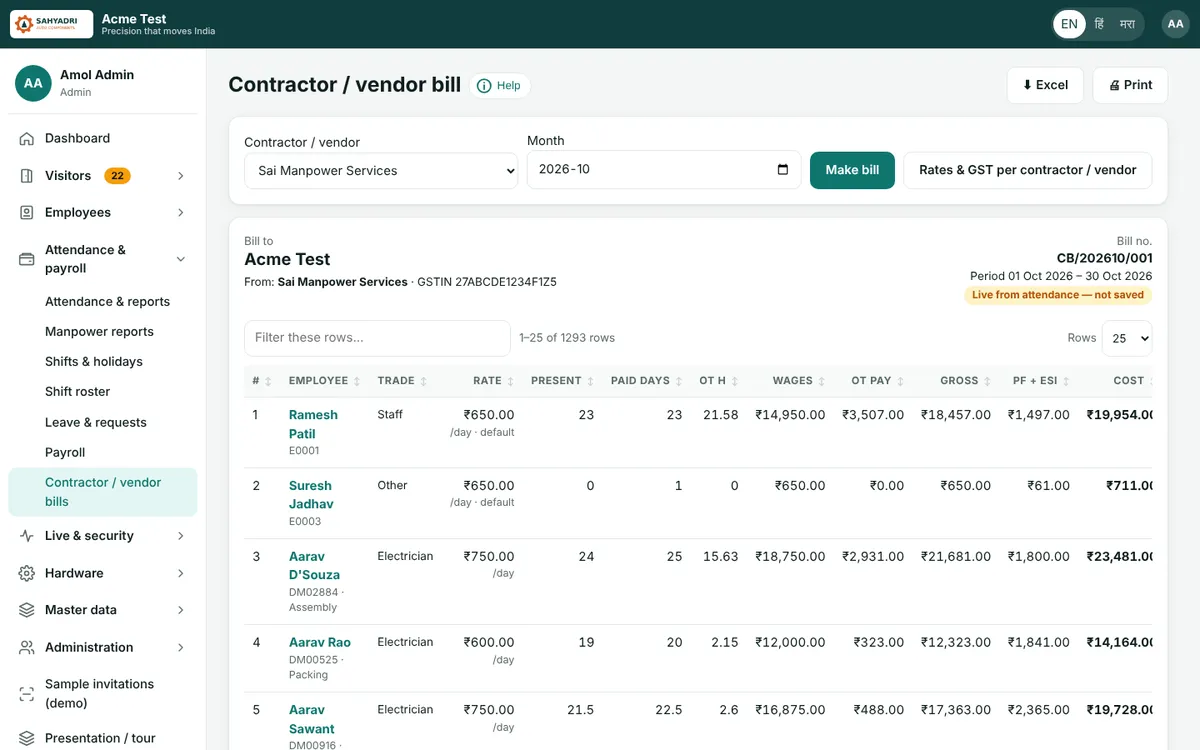
Register workers under their contractor; company payroll staff stay separate. Present days, overtime, wages, PF / ESI, service charge and GST become a numbered bill — print it with your logo or download Excel.
- Rates by trade and GST per contractor
- Draft → final bill with frozen numbers
- Expired contract = worker refused at the gate
Attendance & payroll
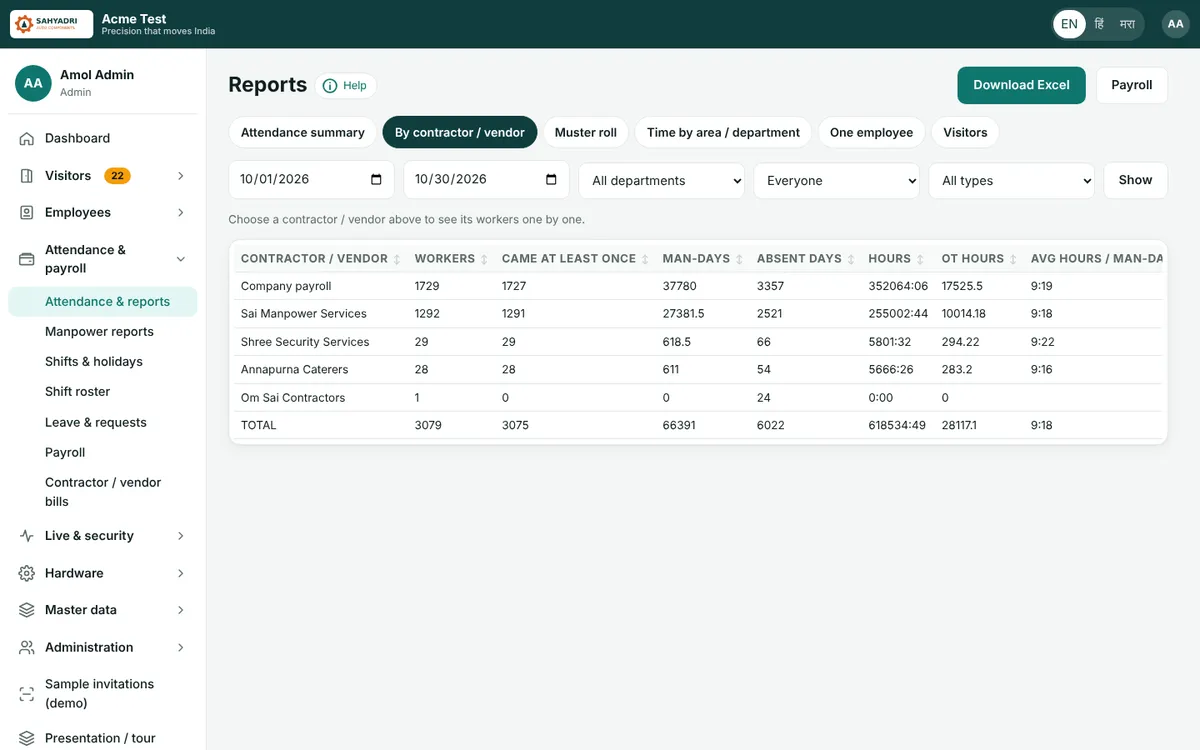
Attendance contractor-wise, in one click
Workers, man-days, absences, hours and overtime for every contractor and for your own payroll — then drill down to each worker. Muster roll, monthly payroll and payslips come from the same punches.
- Muster roll and payroll with PF / ESI / PT
- Shifts, rotating rosters, holidays and leave
- Excel export everywhere
White label
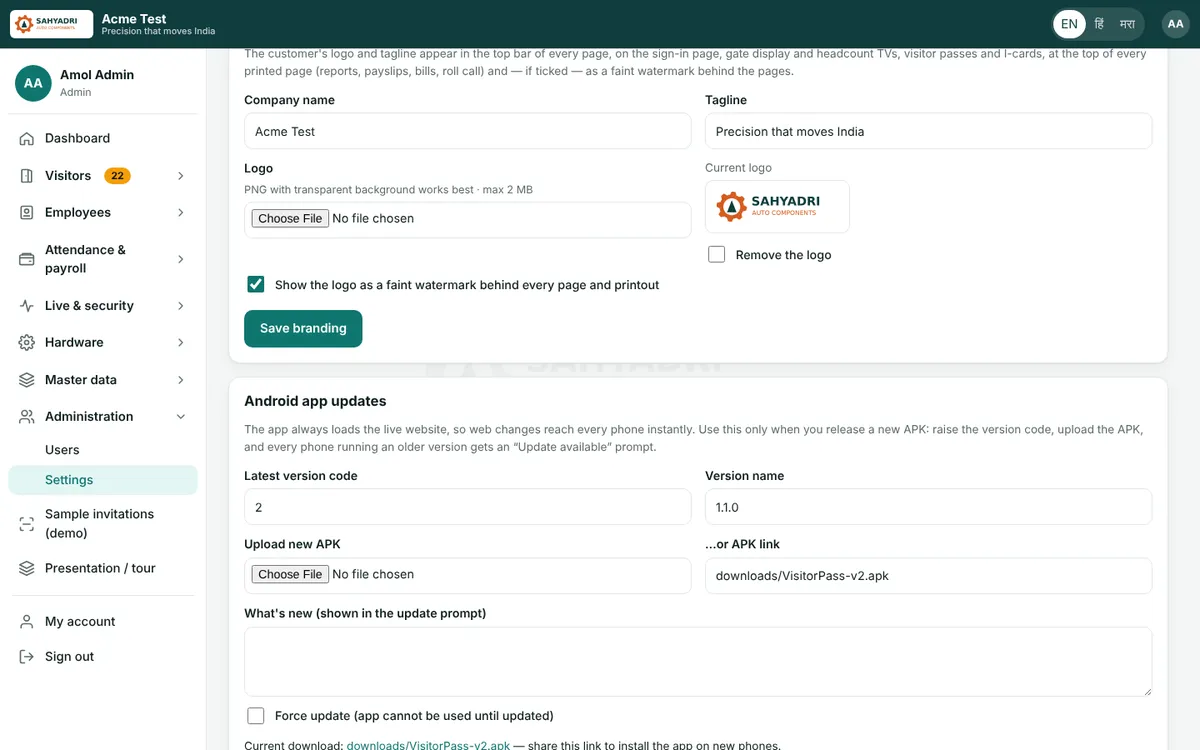
Your client’s logo on every screen and every print
Upload the customer’s logo and tagline once. They appear in the top bar, on the sign-in page, gate and headcount TVs, visitor passes and I-cards — at the top of every printed page, with an optional watermark.
- PNG, JPG, WEBP or SVG logo
- Print header on each page of reports, payslips, roll call and bills
- Faint watermark on screen and paper
Demo without hardware
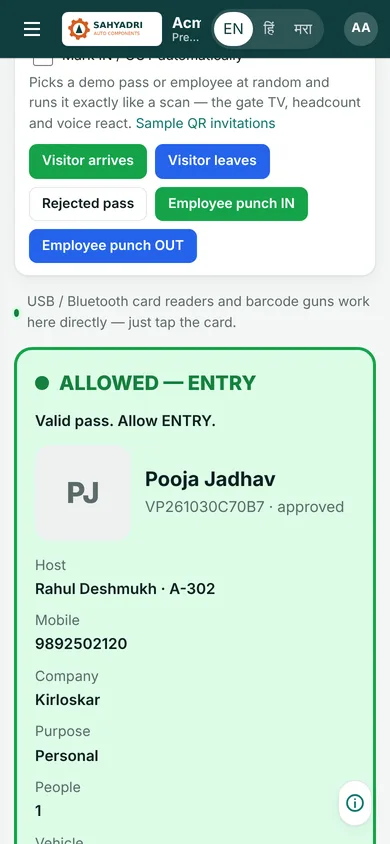
Scan a sample invitation — or just tap “simulate”
In demo mode the gate app has buttons for a visitor arriving or leaving, a rejected pass and employee punches. The gate TV greets the person, the headcount moves and the name is spoken — exactly as with a real scan.
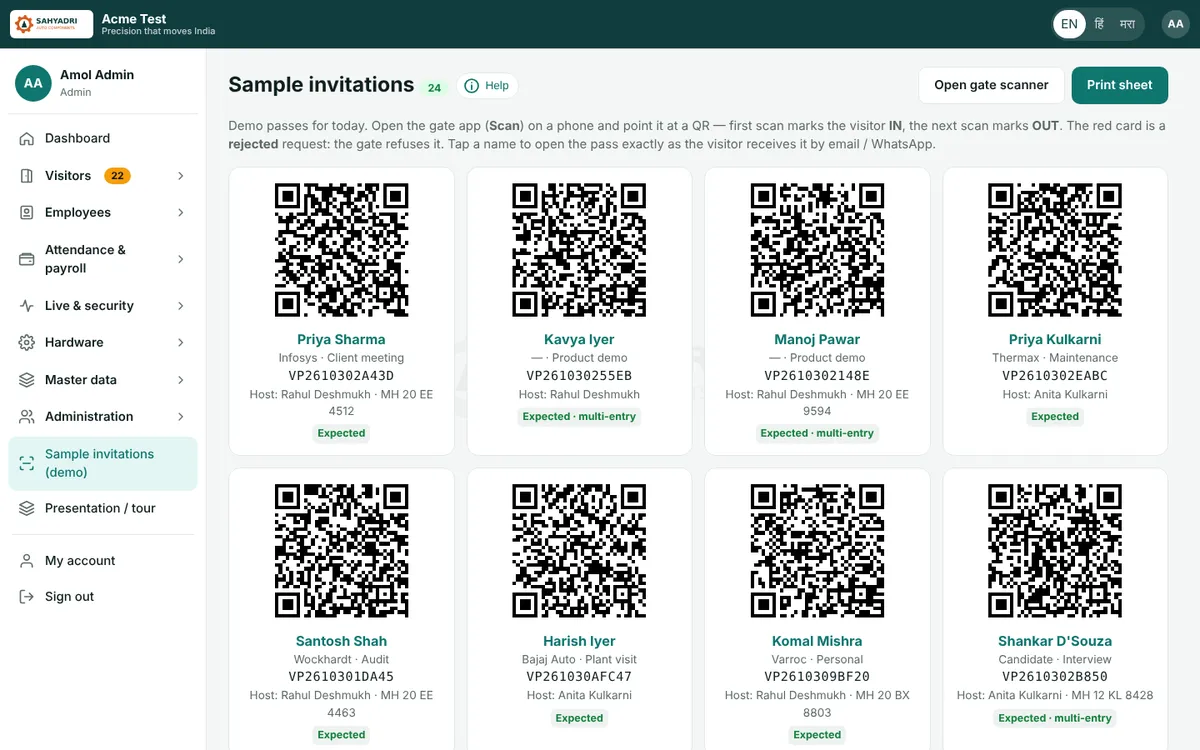
Sample passes
QR invitations ready to show
Each approved visitor gets a QR pass by email or WhatsApp. The demo comes with a sheet of today’s passes — expected, multi-entry and one rejected — to scan from a phone or print.
Self-explaining
Every page explains itself
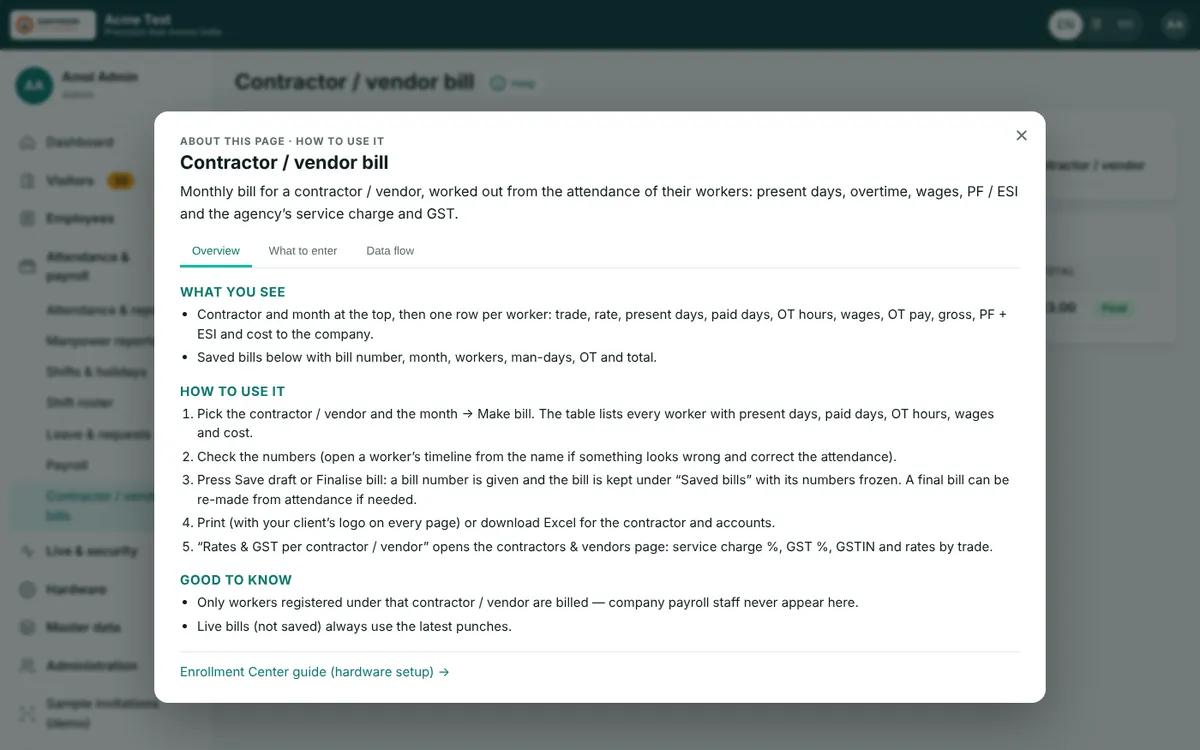
Press the (i) on any page: what you see, how to use it, what to type in each field, where the data goes — and for keys like the Enrollment Center station key, the cloud server address or the display link, the exact steps to get them.